The Flask Mega-Tutorial Part III: Web Forms (2018)
Posted by
on under(Great news! There is a new version of this tutorial!)
This is the third installment of the Flask Mega-Tutorial series, in which I'm going to tell you how to work with web forms.
For your reference, below is a list of the articles in this series.
- Chapter 1: Hello, World!
- Chapter 2: Templates
- Chapter 3: Web Forms (this article)
- Chapter 4: Database
- Chapter 5: User Logins
- Chapter 6: Profile Page and Avatars
- Chapter 7: Error Handling
- Chapter 8: Followers
- Chapter 9: Pagination
- Chapter 10: Email Support
- Chapter 11: Facelift
- Chapter 12: Dates and Times
- Chapter 13: I18n and L10n
- Chapter 14: Ajax
- Chapter 15: A Better Application Structure
- Chapter 16: Full-Text Search
- Chapter 17: Deployment on Linux
- Chapter 18: Deployment on Heroku
- Chapter 19: Deployment on Docker Containers
- Chapter 20: Some JavaScript Magic
- Chapter 21: User Notifications
- Chapter 22: Background Jobs
- Chapter 23: Application Programming Interfaces (APIs)
In Chapter 2 I created a simple template for the home page of the application, and used fake objects as placeholders for things I don't have yet, like users or blog posts. In this chapter I'm going to address one of the many holes I still have in this application, specifically how to accept input from users through web forms.
Web forms are one of the most basic building blocks in any web application. I will be using forms to allow users to submit blog posts, and also for logging in to the application.
Before you proceed with this chapter, make sure you have the microblog application as I left it in the previous chapter installed, and that you can run it without any errors.
The GitHub links for this chapter are: Browse, Zip, Diff.
Introduction to Flask-WTF
To handle the web forms in this application I'm going to use the Flask-WTF extension, which is a thin wrapper around the WTForms package that nicely integrates it with Flask. This is the first Flask extension that I'm presenting to you, but it is not going to be the last. Extensions are a very important part of the Flask ecosystem, as they provide solutions to problems that Flask is intentionally not opinionated about.
Flask extensions are regular Python packages that are installed with pip. You can go ahead and install Flask-WTF in your virtual environment:
(venv) $ pip install flask-wtf
So far the application is very simple, and for that reason I did not need to worry about its configuration. But for any applications except the simplest ones, you are going to find that Flask (and possibly also the Flask extensions that you use) offer some amount of freedom in how to do things, and you need to make some decisions, which you pass to the framework as a list of configuration variables.
There are several formats for the application to specify configuration options. The most basic solution is to define your variables as keys in app.config, which uses a dictionary style to work with variables. For example, you could do something like this:
app = Flask(__name__)
app.config['SECRET_KEY'] = 'you-will-never-guess'
# ... add more variables here as needed
While the above syntax is sufficient to create configuration options for Flask, I like to enforce the principle of separation of concerns, so instead of putting my configuration in the same place where I create my application I will use a slightly more elaborate structure that allows me to keep my configuration in a separate file.
A format that I really like because it is very extensible, is to use a class to store configuration variables. To keep things nicely organized, I'm going to create the configuration class in a separate Python module. Below you can see the new configuration class for this application, stored in a config.py module in the top-level directory.
config.py: Secret key configuration
import os

class Config(object):
    SECRET_KEY = os.environ.get('SECRET_KEY') or 'you-will-never-guess'
Pretty simple, right? The configuration settings are defined as class variables inside the Config class. As the application needs more configuration items, they can be added to this class, and later if I find that I need to have more than one configuration set, I can create subclasses of it. But don't worry about this just yet.
The SECRET_KEY configuration variable that I added as the only configuration item is an important part in most Flask applications. Flask and some of its extensions use the value of the secret key as a cryptographic key, useful to generate signatures or tokens. The Flask-WTF extension uses it to protect web forms against a nasty attack called Cross-Site Request Forgery or CSRF (pronounced "seasurf"). As its name implies, the secret key is supposed to be secret, as the strength of the tokens and signatures generated with it depends on no person outside of the trusted maintainers of the application knowing it.
The value of the secret key is set as an expression with two terms, joined by the or operator. The first term looks for the value of an environment variable, also called SECRET_KEY. The second term, is just a hardcoded string. This is a pattern that you will see me repeat often for configuration variables. The idea is that a value sourced from an environment variable is preferred, but if the environment does not define the variable, then the hardcoded string is used instead as a default. When you are developing this application, the security requirements are low, so you can just ignore this setting and let the hardcoded string be used. But when this application is deployed on a production server, I will be setting a unique and difficult to guess value in the environment, so that the server has a secure key that nobody else knows.
Now that I have a config file, I need to tell Flask to read it and apply it. That can be done right after the Flask application instance is created using the app.config.from_object() method:
app/__init__.py: Flask configuration
from flask import Flask
from config import Config

app = Flask(__name__)
app.config.from_object(Config)

from app import routes
The way I'm importing the Config class may seem confusing at first, but if you look at how the Flask class (uppercase "F") is imported from the flask package (lowercase "f") you'll notice that I'm doing the same with the configuration. The lowercase "config" is the name of the Python module config.py, and obviously the one with the uppercase "C" is the actual class.
As I mentioned above, the configuration items can be accessed with a dictionary syntax from app.config. Here you can see a quick session with the Python interpreter where I check what is the value of the secret key:
>>> from microblog import app
>>> app.config['SECRET_KEY']
'you-will-never-guess'
User Login Form
The Flask-WTF extension uses Python classes to represent web forms. A form class simply defines the fields of the form as class variables.
Once again having separation of concerns in mind, I'm going to use a new app/forms.py module to store my web form classes. To begin, let's define a user login form, which asks the user to enter a username and a password. The form will also include a "remember me" check box, and a submit button:
app/forms.py: Login form
from flask_wtf import FlaskForm
from wtforms import StringField, PasswordField, BooleanField, SubmitField
from wtforms.validators import DataRequired

class LoginForm(FlaskForm):
    username = StringField('Username', validators=[DataRequired()])
    password = PasswordField('Password', validators=[DataRequired()])
    remember_me = BooleanField('Remember Me')
    submit = SubmitField('Sign In')
Most Flask extensions use a flask_<name> naming convention for their top-level import symbol. In this case, Flask-WTF has all its symbols under flask_wtf. This is where the FlaskForm base class is imported from at the top of app/forms.py.
The four classes that represent the field types that I'm using for this form are imported directly from the WTForms package, since the Flask-WTF extension does not provide customized versions. For each field, an object is created as a class variable in the LoginForm class. Each field is given a description or label as a first argument.
The optional validators argument that you see in some of the fields is used to attach validation behaviors to fields. The DataRequired validator simply checks that the field is not submitted empty. There are many more validators available, some of which will be used in other forms.
Form Templates
The next step is to add the form to an HTML template so that it can be rendered on a web page. The good news is that the fields that are defined in the LoginForm class know how to render themselves as HTML, so this task is fairly simple. Below you can see the login template, which I'm going to store in file app/templates/login.html:
app/templates/login.html: Login form template
{% extends "base.html" %}

{% block content %}
    <h1>Sign In</h1>
    <form action="" method="post" novalidate>
        {{ form.hidden_tag() }}
        <p>
            {{ form.username.label }}<br>
            {{ form.username(size=32) }}
        </p>
        <p>
            {{ form.password.label }}<br>
            {{ form.password(size=32) }}
        </p>
        <p>{{ form.remember_me() }} {{ form.remember_me.label }}</p>
        <p>{{ form.submit() }}</p>
    </form>
{% endblock %}
For this template I'm reusing one more time the base.html template as shown in Chapter 2, through the extends template inheritance statement. I will actually do this with all the templates, to ensure a consistent layout that includes a top navigation bar across all the pages of the application.
This template expects a form object instantiated from the LoginForm class to be given as an argument, which you can see referenced as form. This argument will be sent by the login view function, which I still haven't written.
The HTML <form> element is used as a container for the web form. The action attribute of the form is used to tell the browser the URL that should be used when submitting the information the user entered in the form. When the action is set to an empty string the form is submitted to the URL that is currently in the address bar, which is the URL that rendered the form on the page. The method attribute specifies the HTTP request method that should be used when submitting the form to the server. The default is to send it with a GET request, but in almost all cases, using a POST request makes for a better user experience because requests of this type can submit the form data in the body of the request, while GET requests add the form fields to the URL, cluttering the browser address bar. The novalidate attribute is used to tell the web browser to not apply validation to the fields in this form, which effectively leaves this task to the Flask application running in the server. Using novalidate is entirely optional, but for this first form it is important that you set it because this will allow you to test server-side validation later in this chapter.
The form.hidden_tag() template argument generates a hidden field that includes a token that is used to protect the form against CSRF attacks. All you need to do to have the form protected is include this hidden field and have the SECRET_KEY variable defined in the Flask configuration. If you take care of these two things, Flask-WTF does the rest for you.
If you've written HTML web forms in the past, you may have found it odd that there are no HTML fields in this template. This is because the fields from the form object know how to render themselves as HTML. All I needed to do was to include {{ form.<field_name>.label }} where I wanted the field label, and {{ form.<field_name>() }} where I wanted the field. For fields that require additional HTML attributes, those can be passed as arguments. The username and password fields in this template take the size as an argument that will be added to the <input> HTML element as an attribute. This is how you can also attach CSS classes or IDs to form fields.
Form Views
The final step before you can see this form in the browser is to code a new view function in the application that renders the template from the previous section.
So let's write a new view function mapped to the /login URL that creates a form, and passes it to the template for rendering. This view function can also go in the app/routes.py module with the previous one:
app/routes.py: Login view function
from flask import render_template
from app import app
from app.forms import LoginForm

# ...

@app.route('/login')
def login():
    form = LoginForm()
    return render_template('login.html', title='Sign In', form=form)
What I did here is import the LoginForm class from forms.py, instantiated an object from it, and sent it down to the template. The form=form syntax may look odd, but is simply passing the form object created in the line above (and shown on the right side) to the template with the name form (shown on the left). This is all that is required to get form fields rendered.
To make it easy to access the login form, the base template can include a link to it in the navigation bar:
app/templates/base.html: Login link in navigation bar
<div>
    Microblog:
    <a href="/index">Home</a>
    <a href="/login">Login</a>
</div>
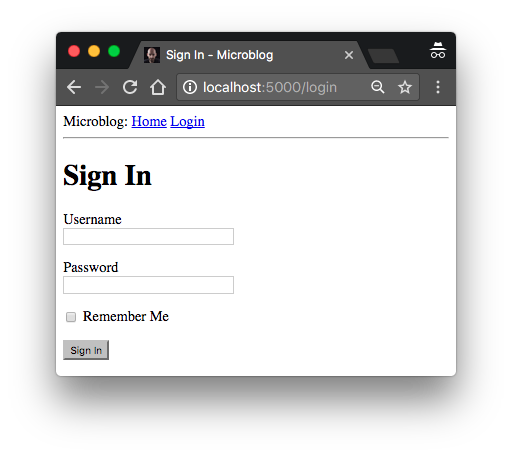
At this point you can run the application and see the form in your web browser. With the application running, type http://localhost:5000/ in the browser's address bar, and then click on the "Login" link in the top navigation bar to see the new login form. Pretty cool, right?
Receiving Form Data
If you try to press the submit button the browser is going to display a "Method Not Allowed" error. This is because the login view function from the previous section does one half of the job so far. It can display the form on a web page, but it has no logic to process data submitted by the user yet. This is another area where Flask-WTF makes the job really easy. Here is an updated version of the view function that accepts and validates the data submitted by the user:
app/routes.py: Receiving login credentials
from flask import render_template, flash, redirect

@app.route('/login', methods=['GET', 'POST'])
def login():
    form = LoginForm()
    if form.validate_on_submit():
        flash('Login requested for user {}, remember_me={}'.format(
            form.username.data, form.remember_me.data))
        return redirect('/index')
    return render_template('login.html', title='Sign In', form=form)
The first new thing in this version is the methods argument in the route decorator. This tells Flask that this view function accepts GET and POST requests, overriding the default, which is to accept only GET requests. The HTTP protocol states that GET requests are those that return information to the client (the web browser in this case). All the requests in the application so far are of this type. POST requests are typically used when the browser submits form data to the server (in reality GET requests can also be used for this purpose, but it is not a recommended practice). The "Method Not Allowed" error that the browser showed you before, appears because the browser tried to send a POST request and the application was not configured to accept it. By providing the methods argument, you are telling Flask which request methods should be accepted.
The form.validate_on_submit() method does all the form processing work. When the browser sends the GET request to receive the web page with the form, this method is going to return False, so in that case the function skips the if statement and goes directly to render the template in the last line of the function.
When the browser sends the POST request as a result of the user pressing the submit button, form.validate_on_submit() is going to gather all the data, run all the validators attached to fields, and if everything is all right it will return True, indicating that the data is valid and can be processed by the application. But if at least one field fails validation, then the function will return False, and that will cause the form to be rendered back to the user, like in the GET request case. Later I'm going to add an error message when validation fails.
When form.validate_on_submit() returns True, the login view function calls two new functions, imported from Flask. The flash() function is a useful way to show a message to the user. A lot of applications use this technique to let the user know if some action has been successful or not. In this case, I'm going to use this mechanism as a temporary solution, because I don't have all the infrastructure necessary to log users in for real yet. The best I can do for now is show a message that confirms that the application received the credentials.
The second new function used in the login view function is redirect(). This function instructs the client web browser to automatically navigate to a different page, given as an argument. This view function uses it to redirect the user to the index page of the application.
When you call the flash() function, Flask stores the message, but flashed messages will not magically appear in web pages. The templates of the application need to render these flashed messages in a way that works for the site layout. I'm going to add these messages to the base template, so that all the templates inherit this functionality. This is the updated base template:
app/templates/base.html: Flashed messages in base template
<html>
    <head>
        {% if title %}
        <title>{{ title }} - microblog</title>
        {% else %}
        <title>microblog</title>
        {% endif %}
    </head>
    <body>
        <div>
            Microblog:
            <a href="/index">Home</a>
            <a href="/login">Login</a>
        </div>
        <hr>
        {% with messages = get_flashed_messages() %}
        {% if messages %}
        <ul>
            {% for message in messages %}
            <li>{{ message }}</li>
            {% endfor %}
        </ul>
        {% endif %}
        {% endwith %}
        {% block content %}{% endblock %}
    </body>
</html>
Here I'm using a with construct to assign the result of calling get_flashed_messages() to a messages variable, all in the context of the template. The get_flashed_messages() function comes from Flask, and returns a list of all the messages that have been registered with flash() previously. The conditional that follows checks if messages has some content, and in that case, a <ul> element is rendered with each message as a <li> list item. This style of rendering does not look great, but the topic of styling the web application will come later.
An interesting property of these flashed messages is that once they are requested once through the get_flashed_messages function they are removed from the message list, so they appear only once after the flash() function is called.
This is a great time to try the application one more time and test how the form works. Make sure you try submitting the form with the username or password fields empty, to see how the DataRequired validator halts the submission process.
Improving Field Validation
The validators that are attached to form fields prevent invalid data from being accepted into the application. The way the application deals with invalid form input is by re-displaying the form, to let the user make the necessary corrections.
If you tried to submit invalid data, I'm sure you noticed that while the validation mechanisms work well, there is no indication given to the user that something is wrong with the form, the user simply gets the form back. The next task is to improve the user experience by adding a meaningful error message next to each field that failed validation.
In fact, the form validators generate these descriptive error messages already, so all that is missing is some additional logic in the template to render them.
Here is the login template with added field validation messages in the username and password fields:
app/templates/login.html: Validation errors in login form template
{% extends "base.html" %}

{% block content %}
    <h1>Sign In</h1>
    <form action="" method="post" novalidate>
        {{ form.hidden_tag() }}
        <p>
            {{ form.username.label }}<br>
            {{ form.username(size=32) }}<br>
            {% for error in form.username.errors %}
            <span style="color: red;">[{{ error }}]</span>
            {% endfor %}
        </p>
        <p>
            {{ form.password.label }}<br>
            {{ form.password(size=32) }}<br>
            {% for error in form.password.errors %}
            <span style="color: red;">[{{ error }}]</span>
            {% endfor %}
        </p>
        <p>{{ form.remember_me() }} {{ form.remember_me.label }}</p>
        <p>{{ form.submit() }}</p>
    </form>
{% endblock %}
The only change I've made is to add for loops right after the username and password fields that render the error messages added by the validators in red color. As a general rule, any fields that have validators attached will have any error messages that result from validation added under form.<field_name>.errors. This is going to be a list, because fields can have multiple validators attached and more than one may be providing error messages to display to the user.
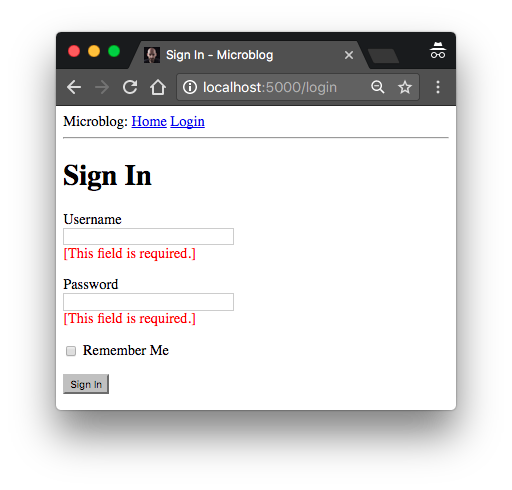
If you try to submit the form with an empty username or password, you will now get a nice error message in red.
Generating Links
The login form is fairly complete now, but before closing this chapter I wanted to discuss the proper way to include links in templates and redirects. So far you have seen a few instances in which links are defined. For example, this is the current navigation bar in the base template:
    <div>
        Microblog:
        <a href="/index">Home</a>
        <a href="/login">Login</a>
    </div>
The login view function also defines a link that is passed to the redirect() function:
@app.route('/login', methods=['GET', 'POST'])
def login():
    form = LoginForm()
    if form.validate_on_submit():
        # ...
        return redirect('/index')
    # ...
One problem with writing links directly in templates and source files is that if one day you decide to reorganize your links, then you are going to have to search and replace these links in your entire application.
To have better control over these links, Flask provides a function called url_for(), which generates URLs using its internal mapping of URLs to view functions. For example, the expression url_for('login') returns /login, and url_for('index') return '/index. The argument to url_for() is the endpoint name, which is the name of the view function.
You may ask why is it better to use the function names instead of URLs. The fact is that URLs are much more likely to change than view function names, which are completely internal. A secondary reason is that as you will learn later, some URLs have dynamic components in them, so generating those URLs by hand would require concatenating multiple elements, which is tedious and error prone. The url_for() is also able to generate these complex URLs.
So from now on, I'm going to use url_for() every time I need to generate an application URL. The navigation bar in the base template then becomes:
app/templates/base.html: Use url\_for() function for links
    <div>
        Microblog:
        <a href="{{ url_for('index') }}">Home</a>
        <a href="{{ url_for('login') }}">Login</a>
    </div>
And here is the updated login() view function:
app/routes.py: Use url\_for() function for links
from flask import render_template, flash, redirect, url_for

# ...

@app.route('/login', methods=['GET', 'POST'])
def login():
    form = LoginForm()
    if form.validate_on_submit():
        # ...
        return redirect(url_for('index'))
    # ...
Buy me a coffee?
Thank you for visiting my blog! If you enjoyed this article, please consider supporting my work and keeping me caffeinated with a small one-time donation through Buy me a coffee. Thanks!

Share this post
-
#501 Miguel Grinberg said
@Tino: The code in this article is 100% correct, you do not need anything else. The
hidden_tagrenders any hidden fields that you have in your form. The CSRF token is often the only hidden form that you have, but you can have more, and hidden_tag will render all of them. -
#502 Robert said
Been coding through this whole tutorial and have hit an error that I can't resolve. I've coded through the 'form views' section and at the bottom of it it says we should be able to run the flask program. I "flask run" and all seems good in terminal, I click the url, the page loads fine. However, when I go to click the login link in the nav bar I get an error:
<hr />Internal Server Error
The server encountered an internal error and was unable to complete your request. Either the server is overloaded or there is an error in the application.
<hr />and in terminal it then states:
<hr />RuntimeError: A secret key is required to use CSRF.
<hr />I've looked over all the code from chapter 1, 2, and up to where I was at in chapter 3 and to the best of my knowledge(and sight staring at my screen for ages!) it looks like I've typed everything in correctly. Googling the error message has yielded zero results. Any suggestions on where/how to troubleshoot from there? Much thanks!
-
#503 Miguel Grinberg said
@Robert: search for "secret key" in this article. You must have missed something related to that since the error indicates that you have not configured a secret key for your application.
-
#504 Miguel Marti said
Thanks for this mega-great tutorial! I'm was completely new to Flask when I started it, and now I feel more confident creating models, templates, routes and forms.
I've had problems with one form element, though: the SelectField.
I have instantiated it like this:
role = SelectField('Role', coerce=int)
and populated it under edit_profile() (in routes.py) with the the ids and values queried from a Roles table.
form.role.choices = [(g.id, g.role) for g in Role.query.order_by('role')]The problem is that I want to set the option corresponding to the user's role already set (it was set during the registration and the value is stored as role_id in the user table) as the default in the SelectField, like this:
form.role.default = current_user.role_idThis does not set the desired option as SELECTED.
Through StackOverflow I have found out that I have to include a
form.process()
after the previous command, but this removes the current_user.username.data from the Form object.
How can I create a SelectField with a dinamically selected (default) option?
Thanks in advance for your help!
-
#505 Miguel Grinberg said
@Miguel: what is
form.role.default? Shouldn't that beform.role.data? -
#506 Miguel Martí said
@Miguel Grinberg. I have found out elsewhere that is the way to set the option you want to appear as selected in the SelectField. It should render an HTML code like the following:
<option selected value="1">Top Boss</option> -
#507 Miguel Grinberg said
@Miguel: But you just said above that this did not work, right? So this place where you found this is wrong, as I suspected. Right? So why do you continue to use it instead of using the normal solution with the
dataattribute? -
#508 Miguel said
Hi Miguel! 5 years later and your content is presenting to be very helpful still!
Yet I’m having issues to use python into the terminal and run “from microblog import app” it says no module named app. In case you still around for some thoughts and help I would appreciate! Thanks.
-
#509 Miguel Grinberg said
@Miguel: your project structure must be wrong. There is a link to GitHub at the top of this article. There you will be able to see what the correct structure is.
-
#510 Viswesh S said
Hi @Miguel Sir!
In the init.py file inside the "app" directory, how is python able to locate "microblog.py", for the line
from config import Config
when init.py and microblog.py are not in the same directory?
-
#511 Miguel Grinberg said
@Viswesh: I don't understand what microblog.py has to do with your question. Did you mean config.py? The reason why config.py can be imported is that it is in the current directory, which is in the Python import path.
-
#512 Jivitesh said
Hi @miguel,
The url_for function was not able to return the values in the jinja template for base.html and I was getting url for login page was "localhost:5000/url_for('login')
What should I do? I have correctly wrote the code as per the blog. -
#513 Miguel Grinberg said
@Jivitesh: check your version of the template against my version in the GitHub repository. You still have mistakes in your template that you have to fix.
-
#514 Scott McLaughlin said
Hey,
Thanks for the tutorial. When I put in data that is larger than 32 characters for either of the entry fields, I expected an error something along the lines of "please limit data to 32 characters" --- but it's not happening.What am I missing?
Many thanks, Scott
-
#515 Miguel Grinberg said
@Scott: this depends on the database. SQLite does not care about maximum lengths, but most other databases do.
-
#516 AR said
Hi Miguel,
I have a form that sometimes needs to remain active for hours and days. Basically it is a text editor where users type blogs. So the tab remains open for several hours (and days. Sometimes users keep the tab open but go to other tabs for their research work and come back to the editor next day. In this case I am seeing that CSRF token expires in an hour, as i have WTF_CSRF_TIME_LIMIT = 3600. From a security point of view, is it safe to increase this value so that the CSRF expires in 24 hours instead of 1 hour? I have also looked at another solution which says that there is no need to set expiry time for CSRF token and let it expire with the user session. But I am not sure about its security implications.
-
#517 Miguel Grinberg said
@AR: Unfortunately there is no universal answer to your question. A CSRF token that is valid for 24 hours is always going to have more risk than one that expires after just one hour. The question is if you are willing to accept the added risk. Another option that you can also consider is to use JavaScript to refresh the CSRF token when it is about to expire.
-
#518 Bogdan said
Hi Miguel,
I found your already slightly dated blog on the web, which is nevertheless helpful in some situations.
I am now looking for a solution to the problem that typing only:
from flask_login import LoginManager
is generating errors, including when trying to run "flask shell". Running the application generates the same errors.
I am working on linux Ubuntu 22.04, Python 3.10. I tested flask-login version 0.6.2 and 0.6.1 .
Do you know any prescription for these ailments?
Greetings, Bogdan -
#519 Miguel Grinberg said
@Bogdan: I believe Flask-Login does not currently work with the new Flask 3.0 that was released a couple of days ago. Try using Flask 2.x instead. Eventually Flask-Login will be fixed and everything will go back to normal. Flask releases often cause breakages. I have a some minor of updates to make to the tutorial as well, but none that I'm aware of in this chapter.
-
#520 Moon said
What if you have two different decorators (so two different urls) for the same function? How does url_for() know which to return? For example, you have both '/index' and '/' as routes for the index() function.
-
#521 Miguel Grinberg said
@Moon: If you have two URLs pointing to the same function it does not matter which one you use. The
url_for()function will return one of them. -
#522 Sid said
Hi Miguel,
Say If I have a for loop on set of data in html and each object has a Edit page with the form template. If form has a selectField. How do I prepopulate existing value based of object in for loop in select field using wtf form?
Ex:
forms.py:
city = SelectField('City', choices=['NY', 'LA', 'CI'])HTML:
{{ form.city }}this will work if i have one payload object rendered from flask while loading html. What if i want to prepopulate 'LA' as user has already selected in created screen.
Thanks
-
#523 Miguel Grinberg said
@Sid: to change the contents of a select form based on the value of another field in the same form, unfortunately the only option is to use JavaScript. This can only happen in the browser.
-
#524 sid said
@miguel, select form is not based on another field. My scenario is to use the form to edit already existing values. Say i have a form fields "first name", "last name" and "city". User has entered values using form as "Sid", "Si" and city("CL") from dropdown choices [NY, CL, LA]. Like wise I have 10 users entered data. Now I want to display all 10 records in a table with each row having a EDIT button which uses the same html with 3 form fields and prepopulated values to edit that entry. First name and Last Name are working good and are populating the values since they are text boxes. But city is not populating the value "CL" from choices given. instead it shows the first choice(NY) from the list of choices.
I hope my question makes sense, as it is pretty much easy with angular or any other application. Iterating through list of objects (10 in this case) and having EDIT page for each row.
Interestingly EDIT form gets prefilled if the form is rendered in a new html page which is rendered by backend flask view. But it doesn't work for select field when same page html component is used like a Modal with field forms.
-
#525 Miguel Grinberg said
@sid: There is nothing special in the
SelectField. To have it show a pre-selected choice you have to set your choice in thedatafield, like you do for all other fields.